Transfer Deck

The S3 client for Mac, iPhone and iPad

Everything Transfer Deck does

One app for your cloud storage and file servers, on Mac, iPhone and iPad. Here is every feature, with screenshots.

Connect to all your storage

Add as many accounts as you need. Each one is a few fields: Transfer Deck fills in the rest for the services it knows.

  • Amazon S3 in every commercial region, plus AWS GovCloud and China, with access keys, temporary credentials, an IAM role (AssumeRole, with external ID) or IAM Identity Center.
  • S3-compatible services, ready to pick: Akamai, Backblaze B2, Cloudflare R2, DigitalOcean Spaces, DreamObjects, Exoscale, Google Cloud Storage, Hetzner, OVHcloud, Scaleway, Storj, Tigris, Vultr and Wasabi. Or any other service with a custom endpoint.
  • Microsoft Azure Blob Storage and OpenStack Swift.
  • SFTP with a password or an SSH key (OpenSSH, PEM or PuTTY), for modern and much older servers. The server's fingerprint is checked.
  • WebDAV, FTP and FTPS (explicit or implicit TLS).
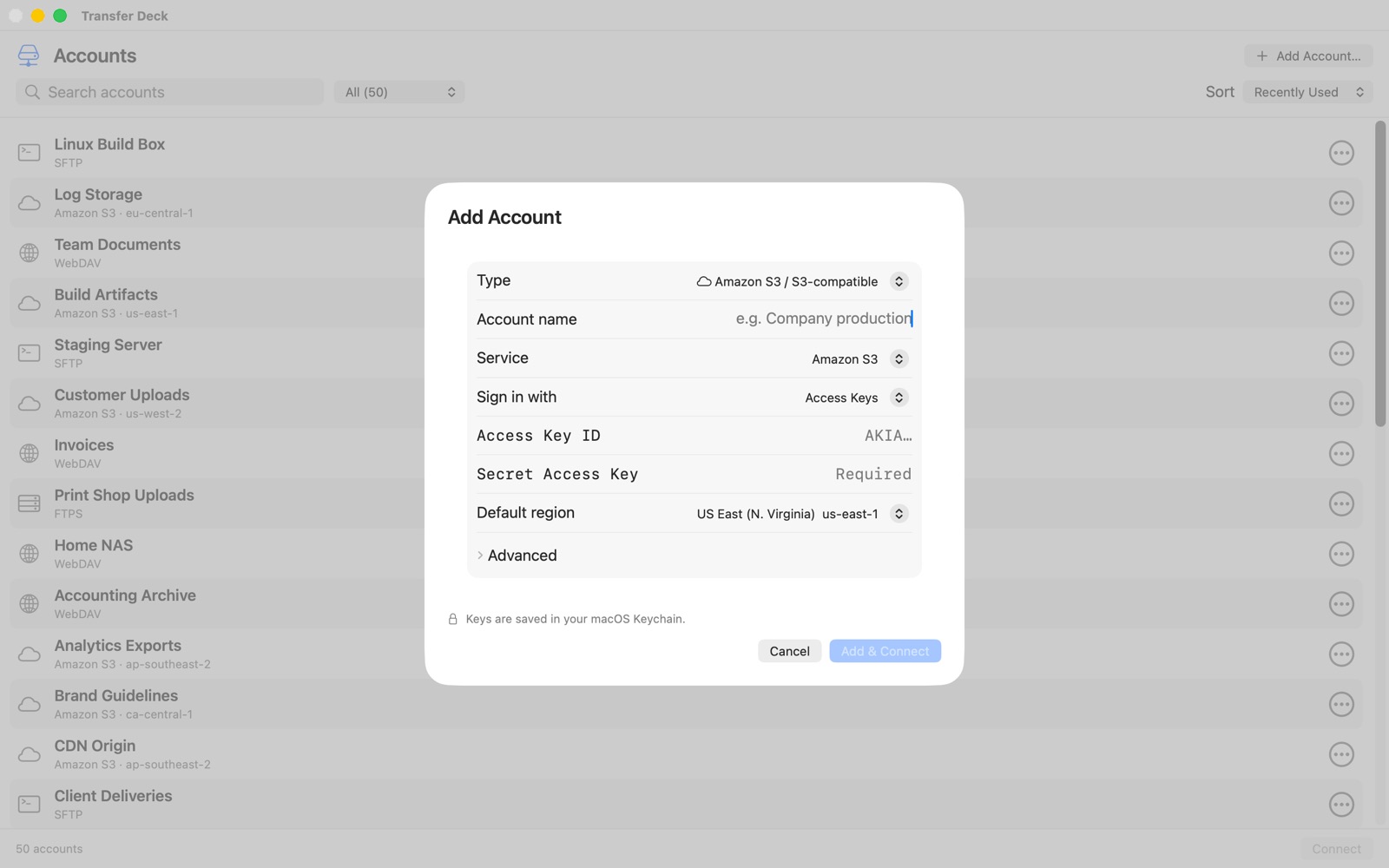
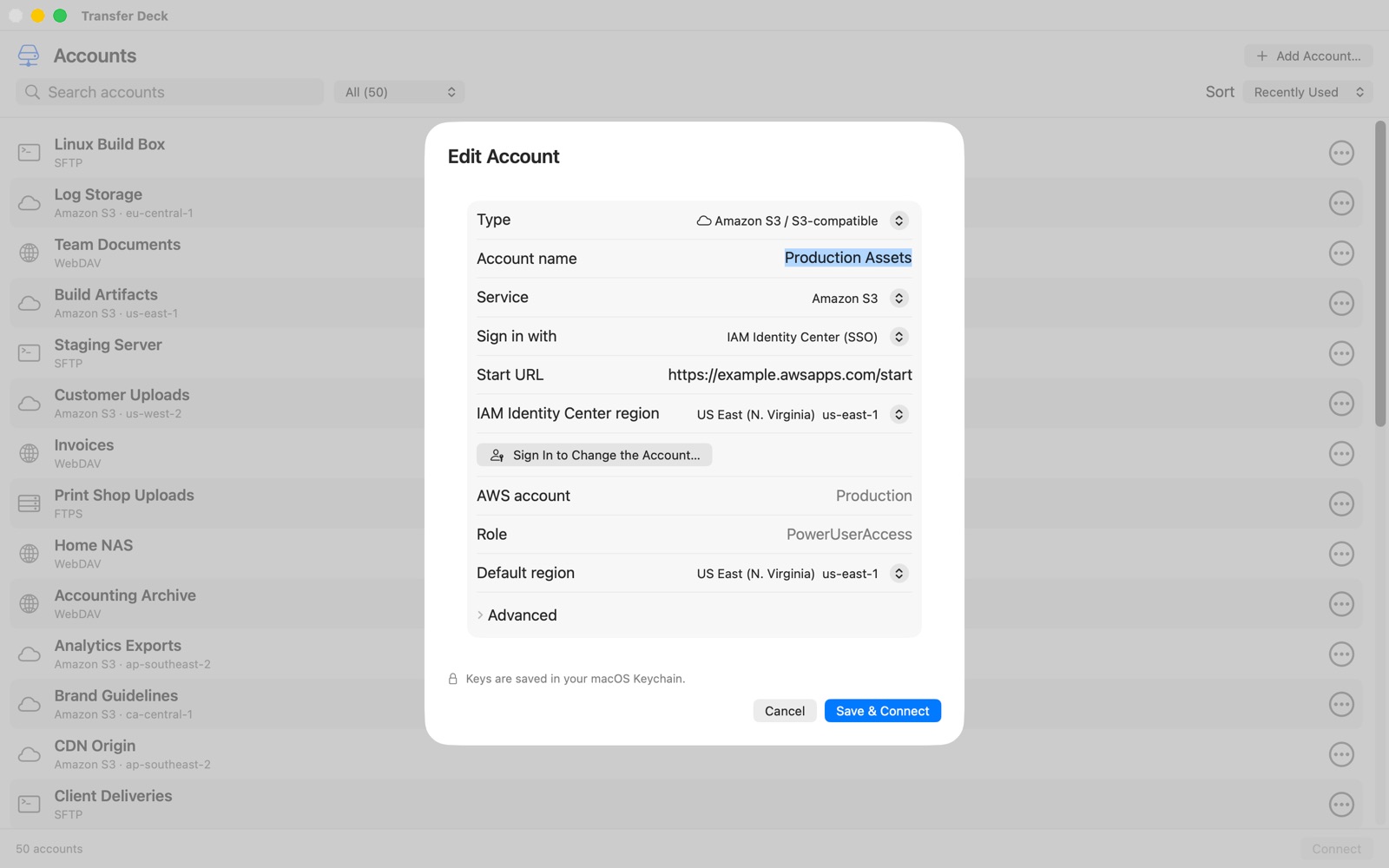
The Add Account sheet on Mac
Adding an account on Mac.

Browse like you do in Finder

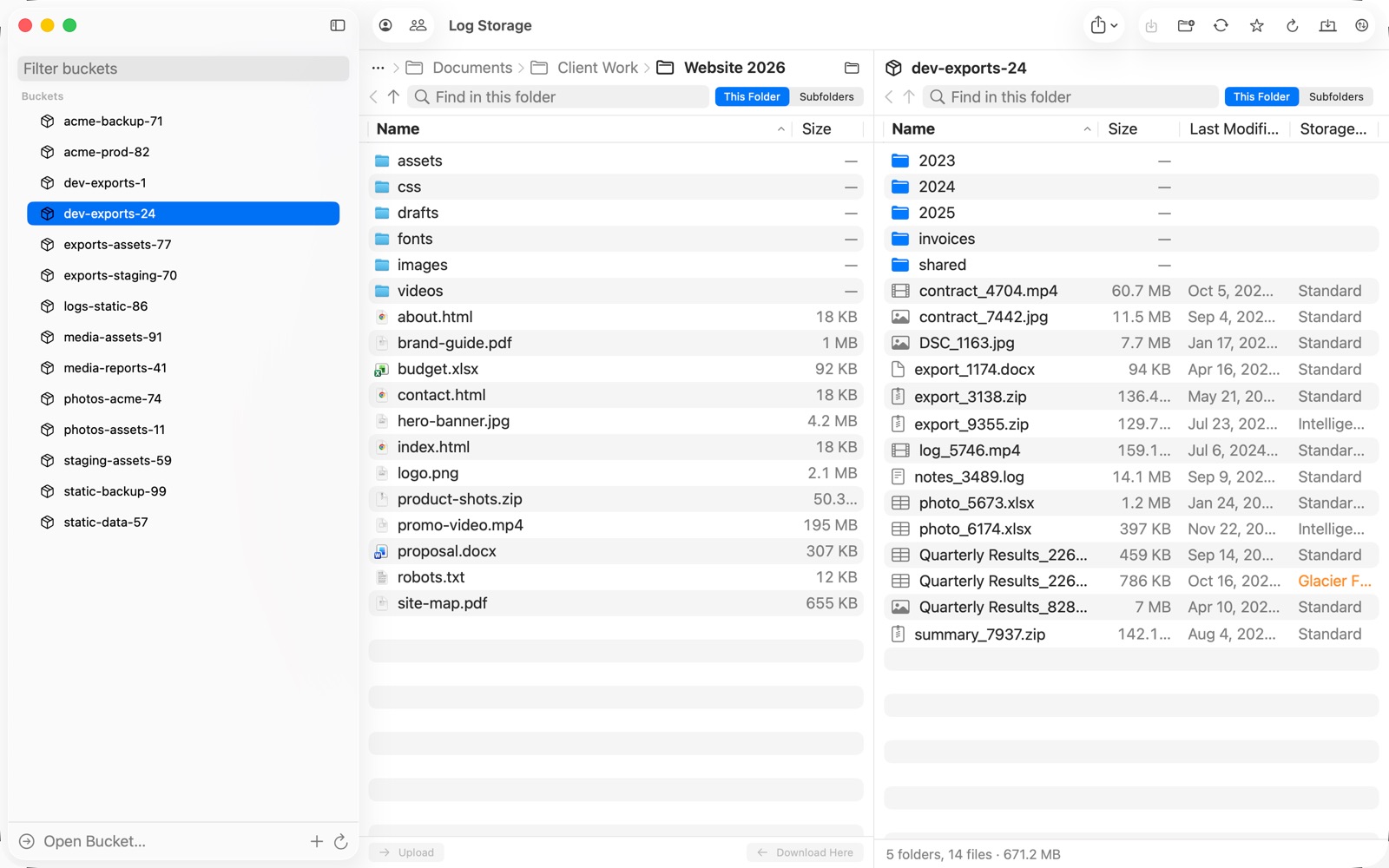
On the Mac, a folder of your Mac sits next to your server, with the same path bar, columns and controls on both sides. Drag files from one side to the other.

Two panes: a Mac folder on the left and an S3 bucket on the right
Two panes: your Mac on the left, an S3 bucket on the right.

Find files

Search by name in the current folder or in all its subfolders, on your Mac and on the server.

Go anywhere

Click any folder in the path, use Back and Up, or jump to Home, Desktop, Documents, Downloads or any folder with Go to Folder (⇧⌘G).

Favorites

Keep the folders and files you use most in the sidebar, one click away.

Sortable columns

Name, size, date, kind and storage class, sorted the way you like.

Transfers you can trust

  • No size limit. Large files stream straight to disk, and uploads go up in parts, eight at a time.
  • Resume. Interrupted transfers pick up where they stopped, and failed parts are retried by themselves.
  • Checked. Every download that can be checked is verified against its checksum.
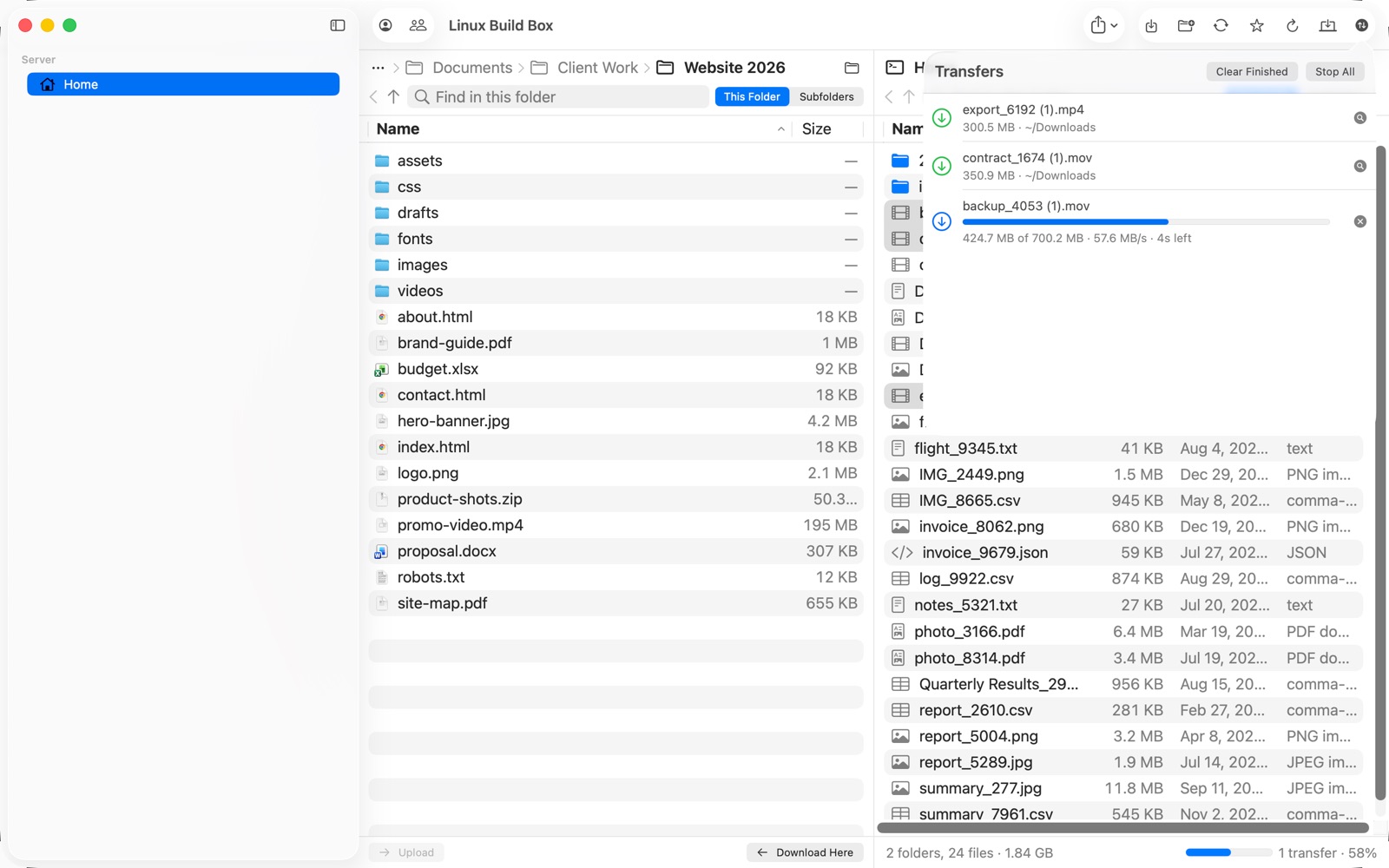
  • Transfers panel with the speed and time left for each file.
  • Keeps going. Your Mac stays awake during long transfers, and you get a notification when they finish.
The transfers panel with a download in progress
The transfers panel: speed and time left.

Work with your files

Quick Look

Press the space bar to preview a file without downloading it first.

Edit in place

Open a file in your favorite app. Every save is uploaded automatically.

Folder sync

Sync a Mac folder with a server folder, and review every change before it runs.

Copy, cut, paste

Between folders and buckets, copied on the server when it can (S3 and WebDAV). Duplicate, new folder, delete.

Batch rename

Rename hundreds of files at once: replace text, add text, or number them.

Drag and drop

Drag files in from Finder to upload them, out to Finder to download them, or onto a folder to move them.

Your Mac's side, too

The Mac pane does what Finder does: Move to Trash, Rename, Duplicate, Compress, Get Info, Quick Look, copy and paste.

Built for Amazon S3

Version history

Download or restore any earlier version of a file, and turn versioning on for a bucket.

Storage classes

Choose the class new uploads get, Glacier included, and change it for many files at once.

Glacier restores

Restore archived files from Glacier and Deep Archive. Archived files are marked in the list.

Get Info

Content type, cache control, custom metadata, storage class and encryption, all editable.

Web links

Share a file with a link that expires after 1 hour to 7 days.

Encryption

SSE-S3 and SSE-KMS, or your own key (SSE-C): without it, nobody can read your files, not even AWS. Generate the key in the app and keep a copy.

Buckets

Create and delete buckets, in any region.

AWS IAM Identity Center

Sign in with your organization's AWS access portal (single sign-on) instead of access keys.

  • Sign in on the AWS page, check the code, and allow Transfer Deck.
  • Pick the AWS account and the role. Temporary keys renew by themselves.
  • When the session expires, Transfer Deck asks you to sign in again, in the app and in the Files app.
An S3 account signed in with IAM Identity Center
An account using IAM Identity Center.

Cryptomator vaults New

Keep files encrypted on any storage with the open Cryptomator format. File names and contents are encrypted on your device before they're uploaded: the server, and anyone who gets into it, sees only encrypted data.

  • Open a vault: go into its folder and click Unlock…, or add it with Add Account → Type → Cryptomator Vault.
  • Create vaults on S3, Azure, Swift, SFTP, WebDAV and FTP accounts, or in a folder on your Mac or iPhone.
  • Inside a vault, upload, download, rename, move and delete as in any folder, drag and drop included.
  • Your vault password is never saved: a vault locks when you leave it or quit Transfer Deck.
  • Your vaults also open in the Cryptomator apps. Transfer Deck opens vaults made with Cryptomator 1.6 or later.

Transfer Deck isn't affiliated with Cryptomator or Skymatic GmbH.

All your accounts, everywhere

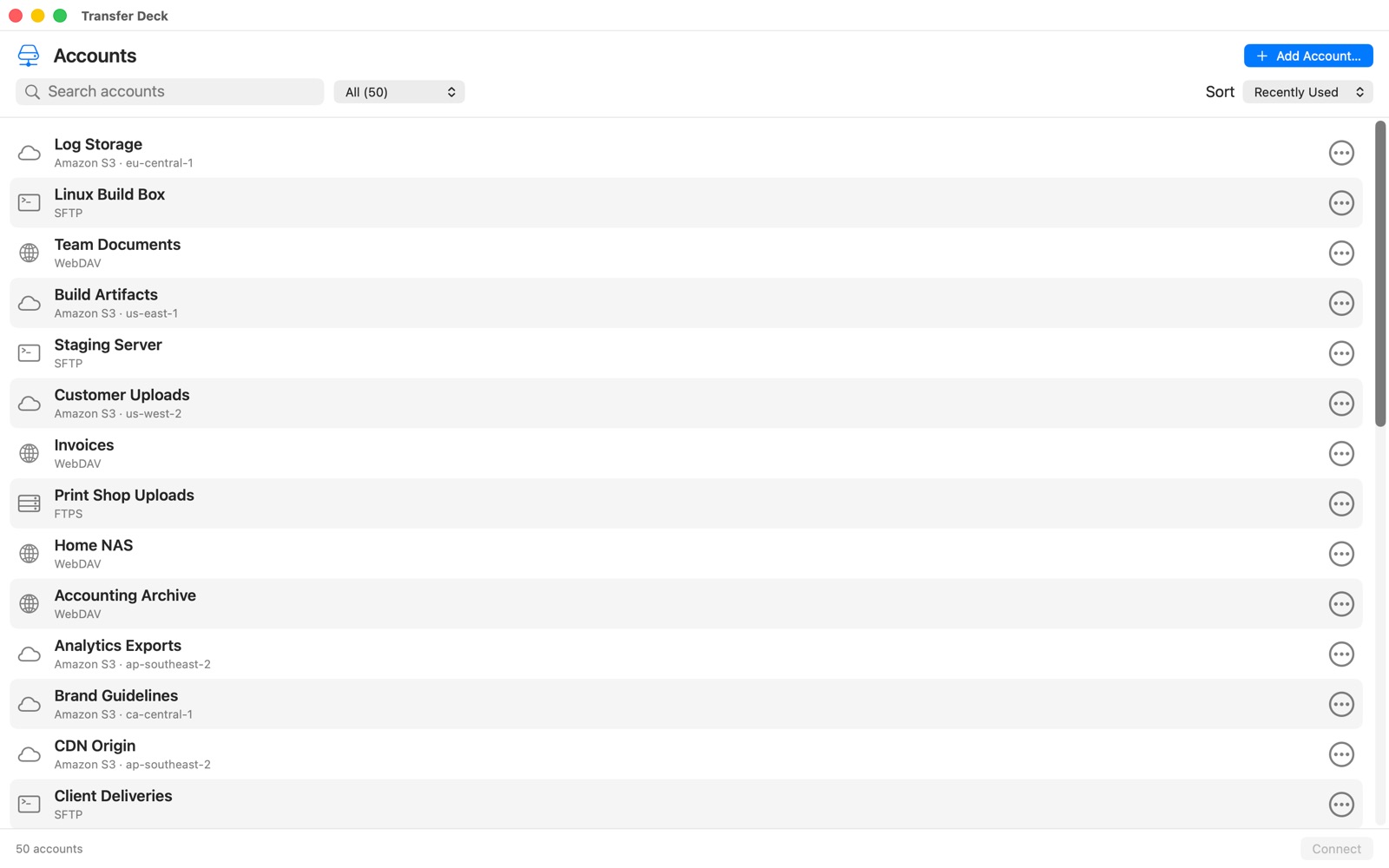
The accounts list on Mac with search and filters
Search and filter your accounts.
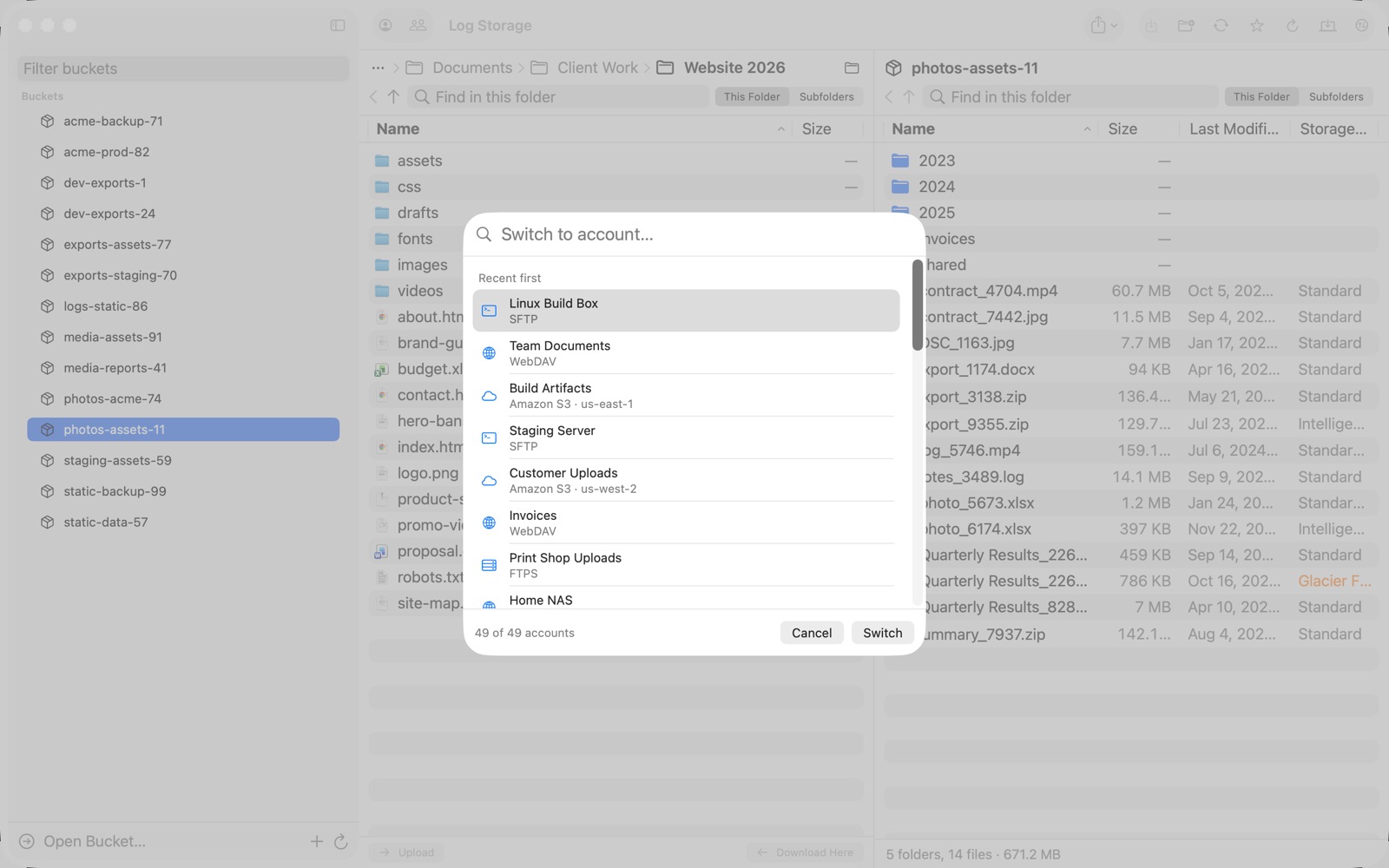
The account switcher
Switch accounts with ⌘K.

Same accounts on every device

Your accounts sync between your Mac, iPhone and iPad through iCloud Keychain, end-to-end encrypted. You can turn this off.

Search and filter

Find an account by name, filter by type, and sort by name or by most recently used.

Your accounts in Finder

Right-click an account and choose Show in Finder Sidebar. It appears under Locations in every Finder window, like a disk.

  • Files download when you open them. Copy, rename, delete and drag and drop right in Finder.
  • Open in Finder and Remove from Finder Sidebar are in the same menu.
  • On iPhone and iPad, each account can appear in the Files app the same way.

Upload from any app

  • Mac: in Finder, right-click files and choose Share → Transfer Deck or Services → Upload with Transfer Deck. A small window opens right there; Transfer Deck itself stays in the background.
  • iPhone and iPad: tap Share → Transfer Deck in Photos, Mail, Files or any other app.
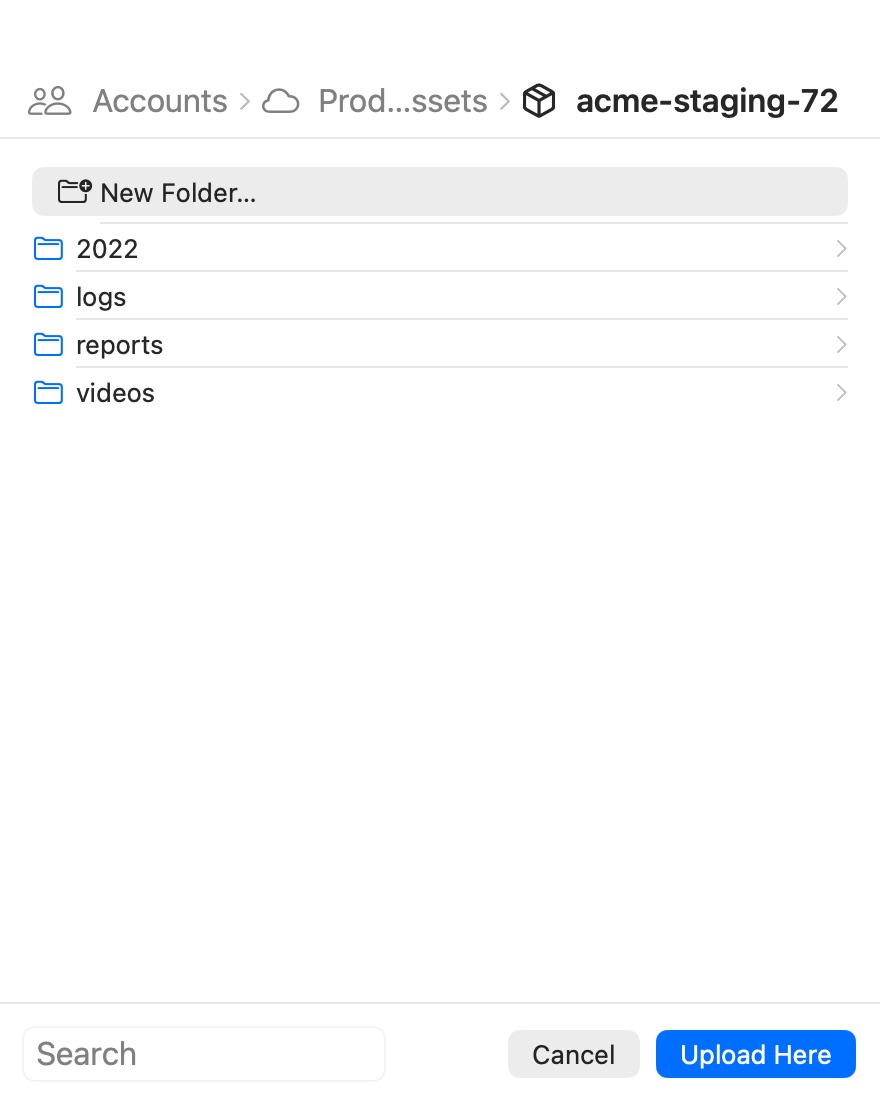
  • Pick the account and the folder. The last place you used is offered first, you can search at every level, click the path to go back, and create a new folder.
  • A progress bar shows the upload until it's done.
The upload window: path bar, folders, New Folder, search, Cancel and Upload Here
Choosing where to upload, on Mac.

Shortcuts

Automate your transfers with the Shortcuts app on Mac, iPhone and iPad, or ask Siri.

List FilesA folder or everything in it, sorted by name, newest, oldest or largest, with dates and sizes if you want.
Download FileOne file, or every file from List Files, passed to the next action.
Download Latest FilesThe newest files of a folder, subfolders included if you want, or only those changed in the last hours.
Upload FilesInto a folder. Files with the same name are replaced.
Move or Rename FileWithin the same bucket on S3.
Delete FileAsks for confirmation first, unless you turn that off.
Get Web LinkAn S3 link that lasts from 1 hour to 7 days.

Filter by name: starts with, ends with or contains. Listing files and web links are always free.

Example: bring new screen recordings to your Mac every day

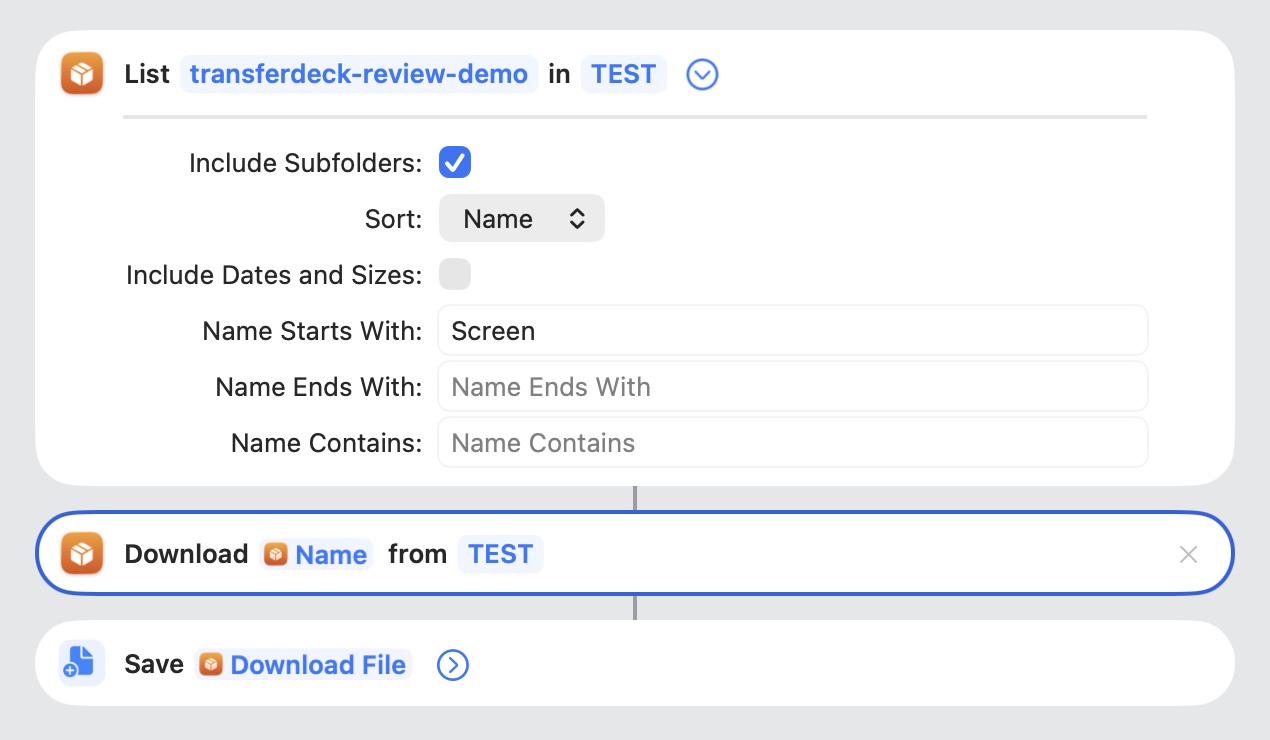
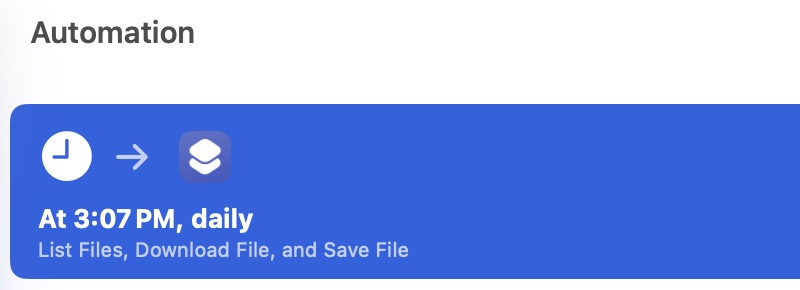
List the bucket's files whose name starts with “Screen”, download them, and save them. Then run it every day at the same time from Shortcuts → Automation.

A shortcut: List Files in a bucket with names starting with Screen, Download File, then Save File
The shortcut: List Files → Download File → Save File.
A Shortcuts automation that runs the shortcut every day at 3:07 PM
An automation in Shortcuts runs it every day.

On iPhone and iPad

The same accounts and the same features, made for touch.

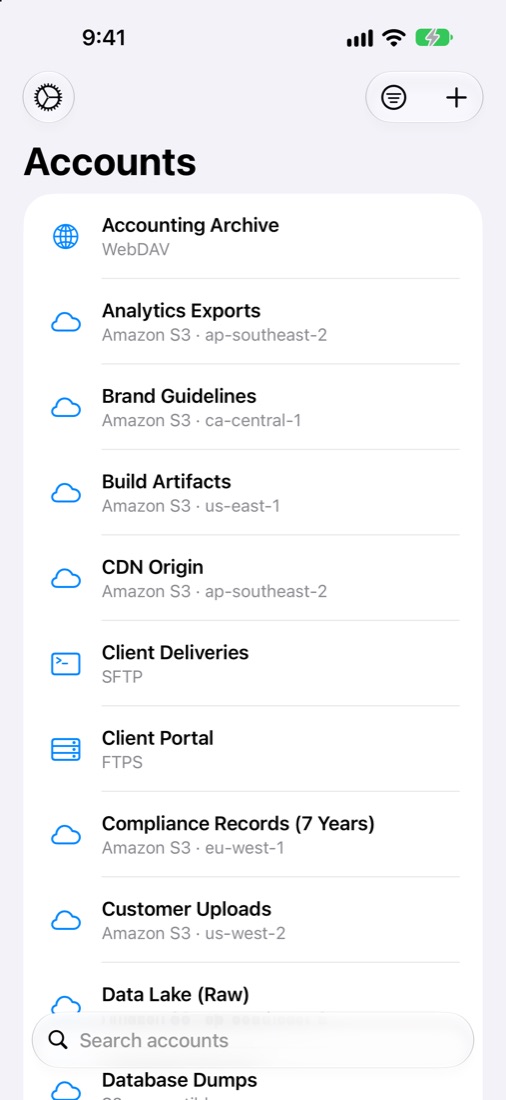
Accounts on iPhone
Your accounts
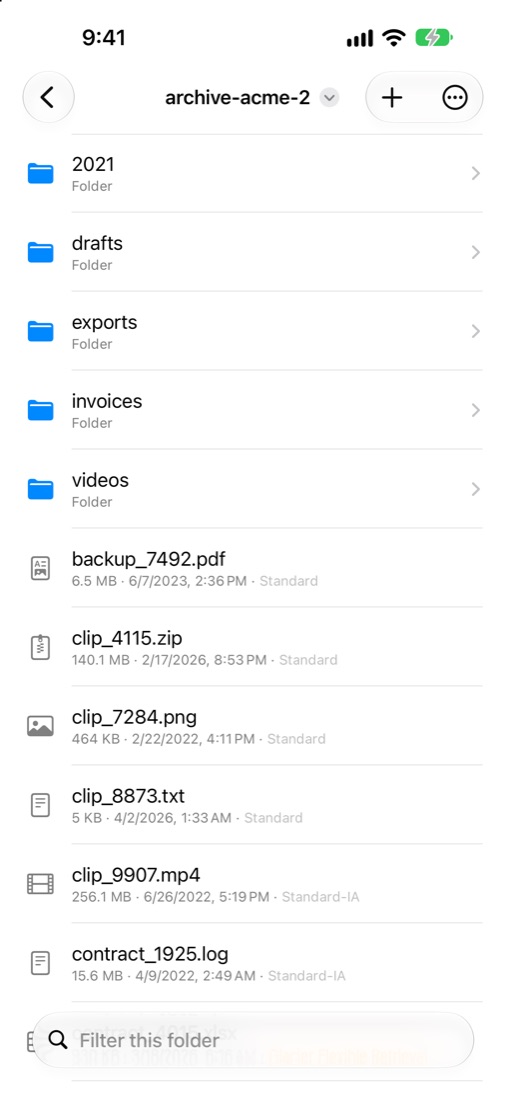
A bucket on iPhone
Browse a bucket
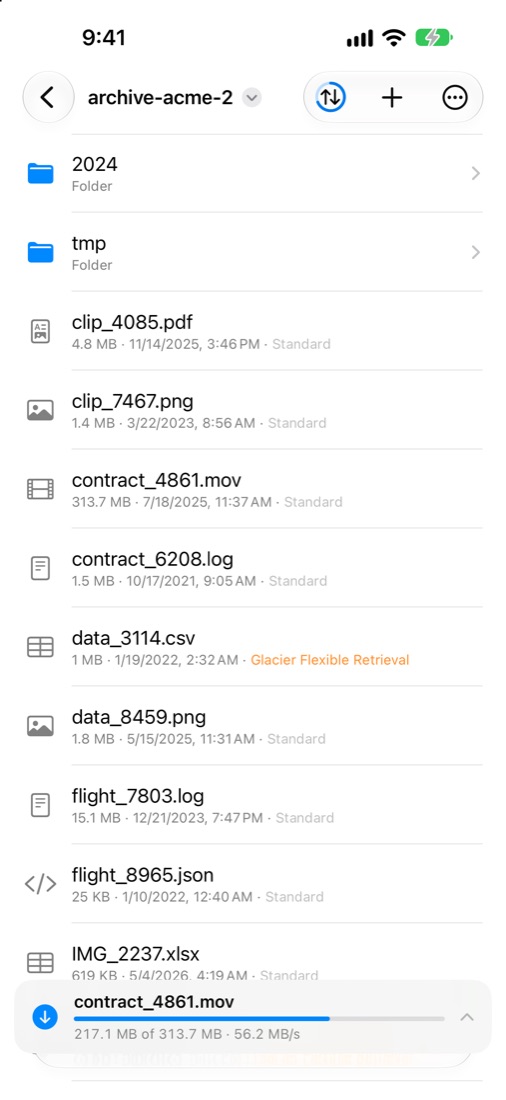
The transfer bar on iPhone
The transfer bar
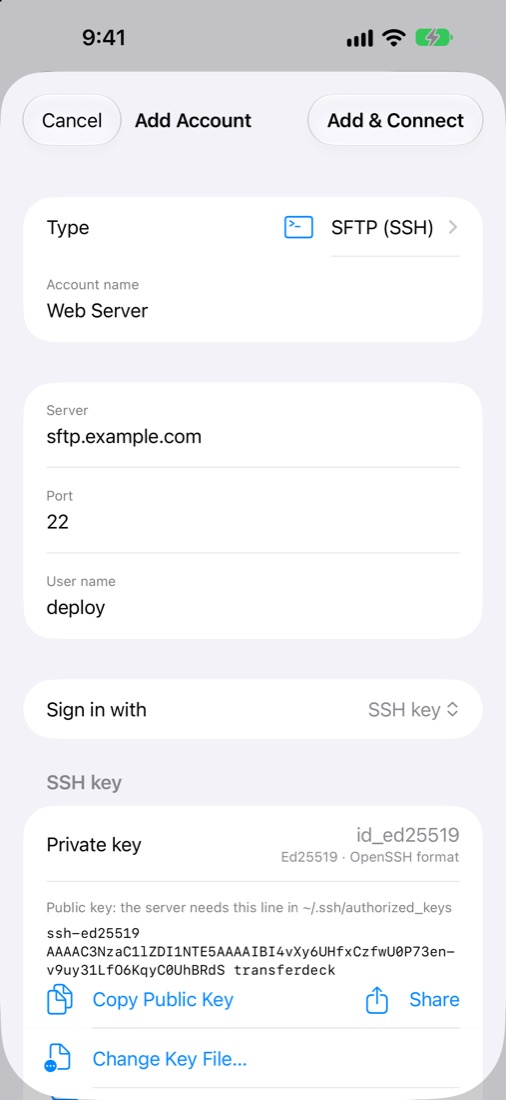
An SFTP account with an SSH key on iPhone
SFTP with an SSH key

Your servers in the Files app

Open, save and move files from any app, as if they were on your device.

Glacier, right in Files

Archived files are tagged. Change the storage class or restore a file from the Files menu.

Transfers that keep going

Downloads and uploads continue in the background, with a notification when they finish.

Photos and drag and drop

Upload straight from your photo library, or drag files in from other apps on iPad.

Security and privacy

Face ID and Touch ID

Lock Transfer Deck when you're away (Settings → Security). The lock hides the screen; transfers keep running.

Keys in your Keychain

Keys and passwords stay in your Keychain, and are sent only to the server you connect to.

No tracking

No accounts, no analytics, no ads. Files go directly between your devices and your storage, never through us. Privacy policy.

In English and French

The whole app follows your device's language.

Try everything free for 15 days

Browsing is always free. After the trial, one purchase unlocks Transfer Deck forever on your Mac, iPhone and iPad. No subscription.

$9.99
Download on the App Store